Documentation
Clip showcases
A clip showcase posts a streamer’s best moments on a schedule: a generated image ranking the period’s top 1, 3, or 5 most-viewed clips, with a link button for every clip right under the picture. Set it up once and your server gets a highlight reel every day, week, or month.
Creating a showcase
- 1Open your server in the dashboard and click + New clip showcase (below your monitors).
- 2Type the Twitch channel name whose clips get ranked, as it appears in twitch.tv/<name>.
- 3Pick one or more announcement channels. Just like a monitor, the showcase posts to every channel you select.
- 4Choose how often it posts (daily, weekly, or monthly), the post time, and your timezone. Weekly showcases also ask for the day of the week.
- 5Pick how many top clips to feature (1, 3, or 5), optionally add mentions and a custom message, and click Create showcase. The form shows exactly when the first post will go out.
Cadences & what each post covers
| Cadence | Posts | Clips covered |
|---|---|---|
| Daily | Every day at your chosen time | The 24 hours before the post |
| Weekly | Your chosen day of the week, at your chosen time | The 7 days before the post |
| Monthly | The 1st of every month, at your chosen time | The entire previous calendar month |
Clips are ranked by view count within the covered window, the same order Twitch itself uses for “top clips.”
What the post looks like
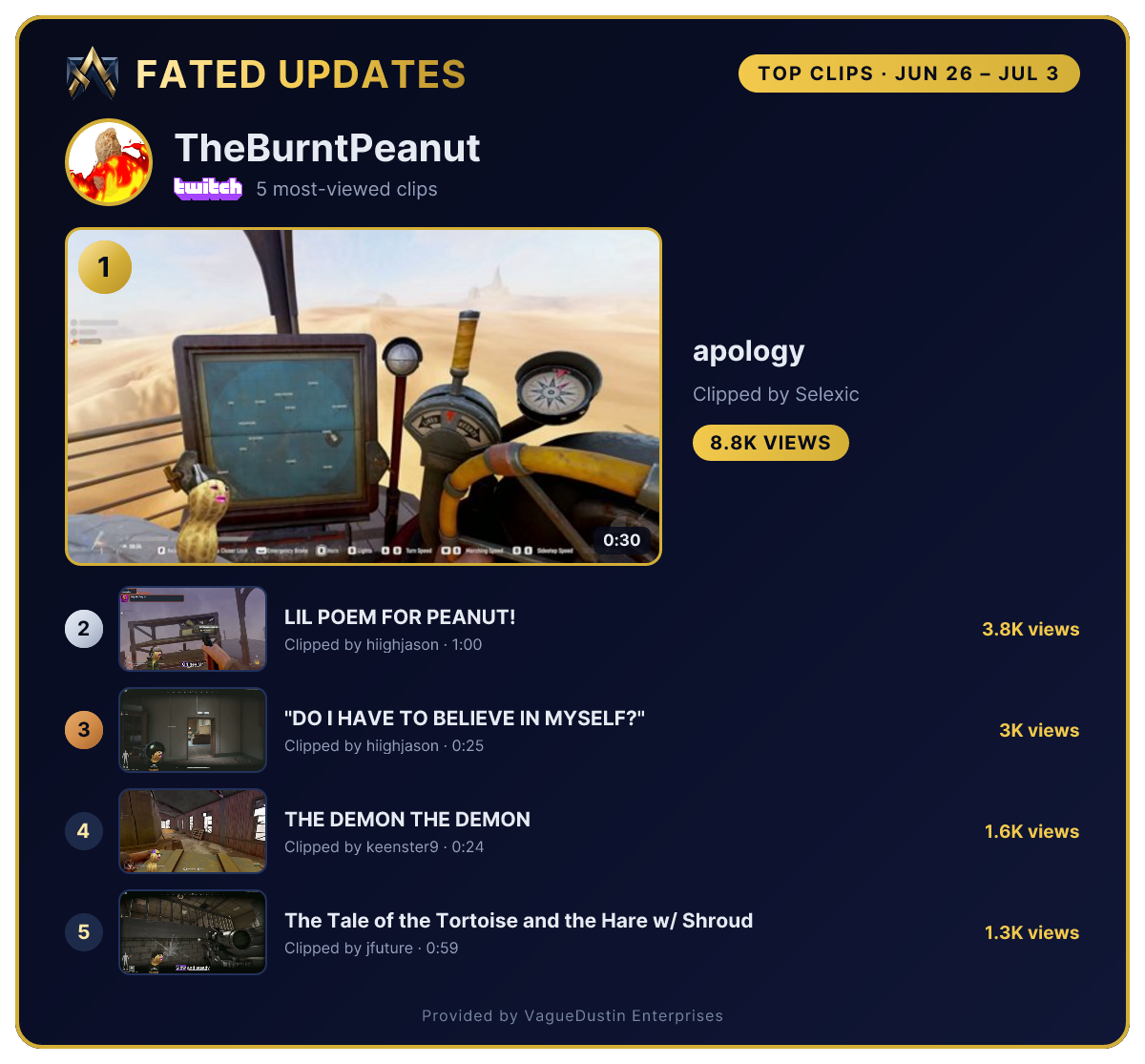
Each showcase is a single Discord message. Your mentions and custom message come first, then the generated ranked showcase image (the #1 clip as a large hero with its thumbnail, rank medallion, duration, and view count; runners-up as compact ranked rows). Directly under the image is one link button per clip, labeled like #1 · 45K views. Clicking a button opens that clip on Twitch.
The custom message supports placeholders, filled in at post time:
| Placeholder | Becomes |
|---|---|
{streamer} | The streamer's display name |
{platform} | “Twitch” |
{login} | The lowercase channel name |
{url} | A link to the streamer's channel |
{title} | The covered period's label, e.g. JUN 25 – JUL 1 or JUNE 2026 |
Managing showcases
| Action | What it does |
|---|---|
| Test post | Posts the current period's top clips to every configured channel right away. Test posts never ping (@everyone/@here/role mentions are stripped), and the regular schedule is untouched. |
| Enable / Disable | Pauses or resumes the schedule without deleting the configuration. Re-enabling schedules the next post from now, so it never sends posts it missed. |
| Edit | Changes channels, schedule, clip count, mentions, and message in place. The streamer is locked once created. To switch streamers, delete the showcase and create a new one. |
| Delete | Removes the showcase instantly. There's nothing on the platform side to clean up. |
Game-wide showcases
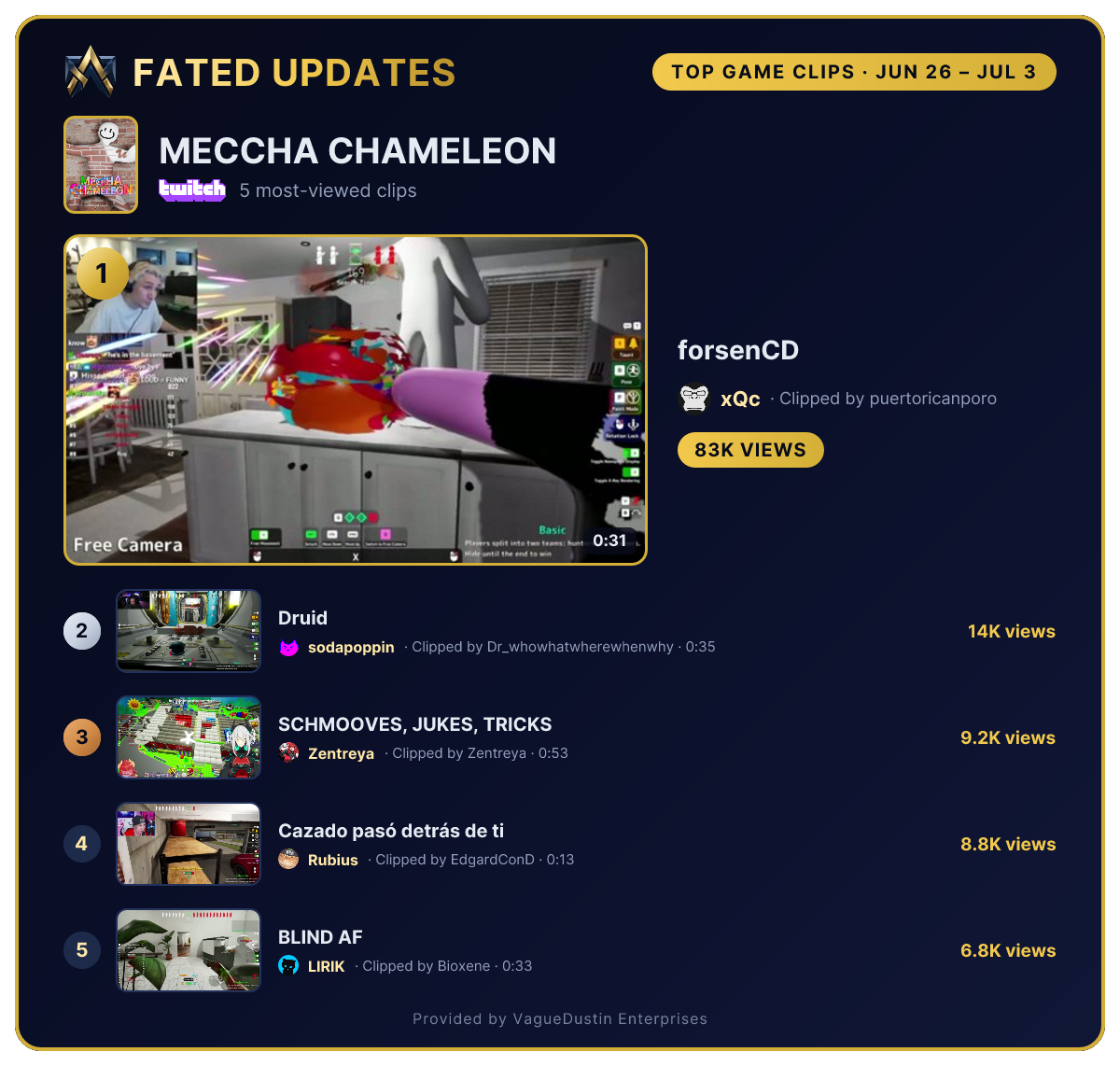
A game clip showcase points at an entire Twitch category instead of one streamer: the most-viewed clips across every channel playing the game, ranked on one leaderboard. Search for the category by name when you create it and pick from the results. The card shows the game's box art up top, and every clip is credited with its streamer's name and avatar (the link buttons include the streamer name too, like #1 · xQc · 83K views).
Game showcases also take an optional clip language filter. Pick a language and only clips from streams broadcast in it are ranked, which is useful for non-English communities following a global game. Everything else (cadences, windows, post time and timezone, mentions, custom message, Test post, quiet-period skipping) works exactly like streamer showcases.
{game} is the category name and {url} links to the game's Twitch directory page.Limits & platform support
| Limit | Value |
|---|---|
| Showcases per streamer per server | 1 per cadence (a weekly AND a monthly for the same streamer is fine) |
| Game showcases per game per server | 1 per cadence per language (e.g. weekly English AND weekly Spanish) |
| Announcement channels per showcase | up to 10 |
| Featured clips per post | top 1, 3, or 5 by views |
| Custom message length | 1,500 characters |